
8 Amazing Things Gemini x Google Can Do
Gemini’s integration with Google allows it to do some incredible things!

Have you tried Gemini?
It is always compared to ChatGPT. But Gemini’s integration with Google allows it to do some incredible things.
Gemini’s strength is that it can access all information within the Google ecosystem. It can reference information within services such as:
Google Docs
Spreadsheets
Slides
Gmail
Calendar
Keep
Drive
as if it were “its own brain.”
Information that was previously scattered becomes connected in an instant through Gemini. That means you can instantly semi-automate everything from organising Gmail to generating calendars and analysing Drive.
And here’s the best part: you don’t need Gemini Pro to do this.
Yet most people never discover these capabilities. They are using Gemini in its default settings and only tapping into 10% of its potential.
In this email, I’ll show you 8 amazing things Gemini × Google can do.
You should absolutely be using these features.
Let’s Give Gemini Its Full Power First
Before we do anything interesting, we need to give Gemini access to our Drive, Email, Calendar, etc.
Open Gemini, then follow these steps:
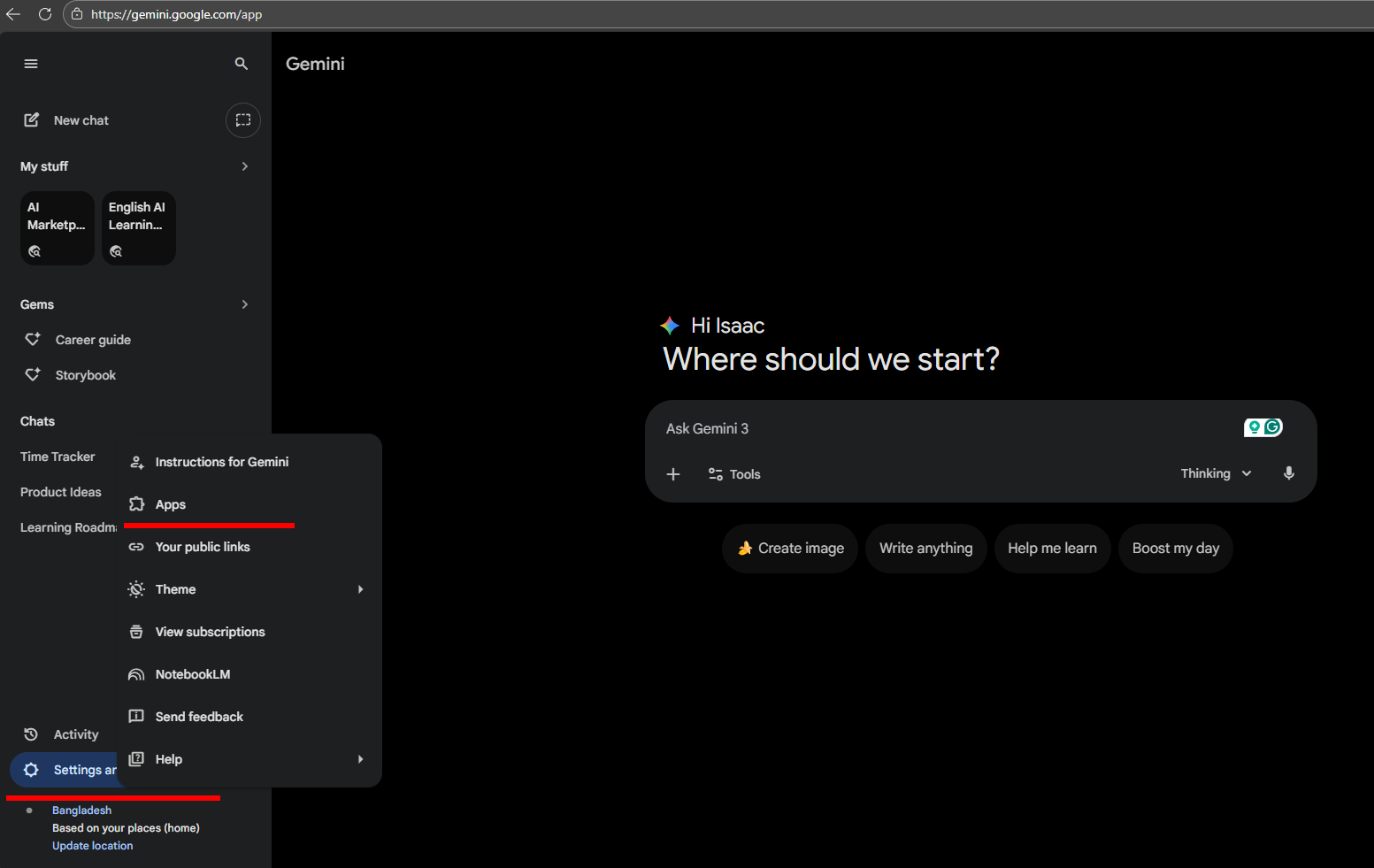
1. From the left-hand menu, go to Settings → Apps
2. Turn on Google Workspace
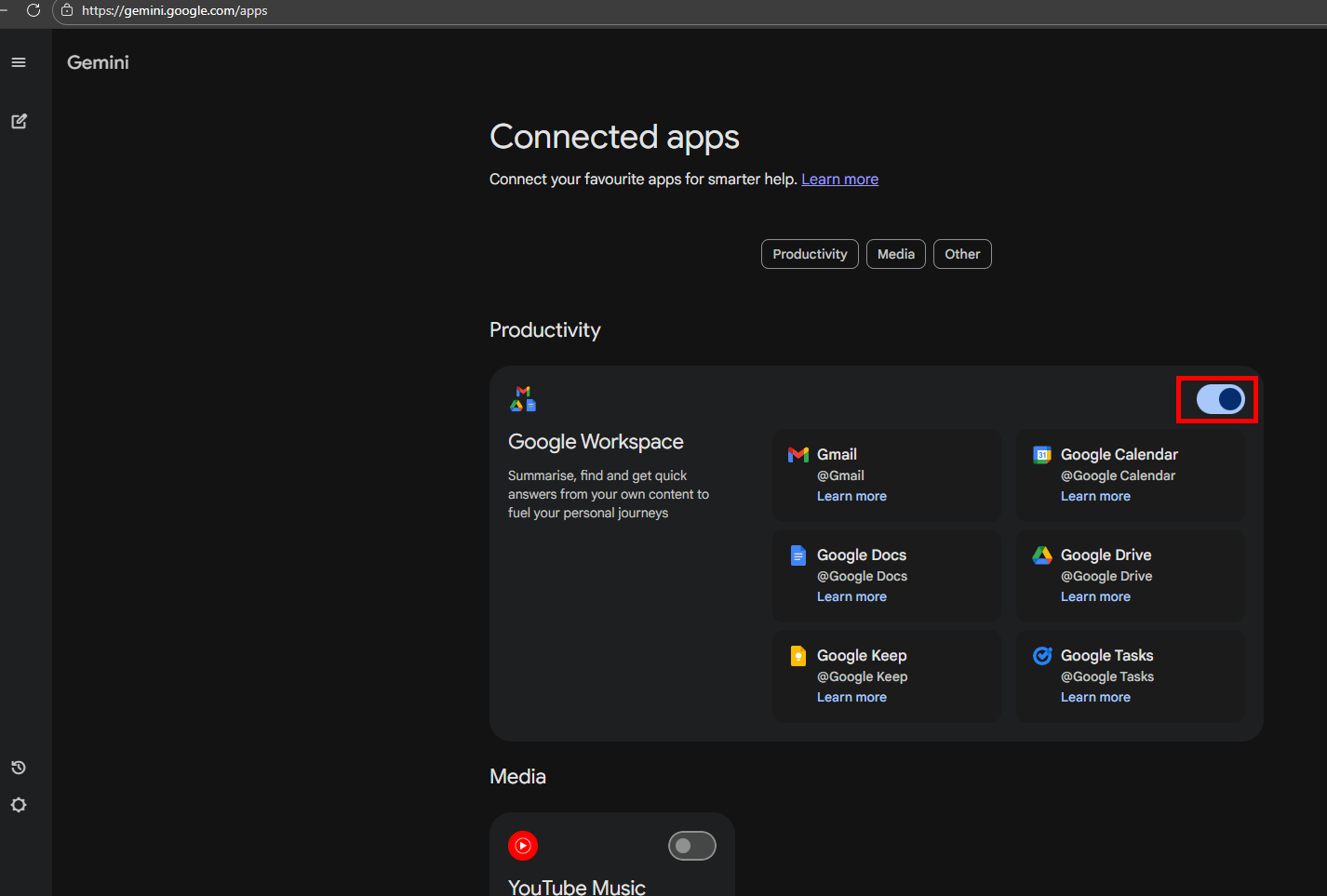
That’s all it takes to connect them. Gemini will now have access to your Gmail, Calendar, Drive, Docs, etc.
Set Gemini as your daily automation assistant
Next, we’ll give Gemini a single instruction that tells it how to behave.
Open a new chat and enter this prompt once:
From now on, I will use Gemini as my Daily Automation Assistant.

● What you will do

- Analyse Gmail and automatically extract important emails and emails requiring a reply.
- Automatically generate schedules in the calendar
- Summarise new files in Drive with suggested categorisation.
- Automatically create meeting minutes, daily reports, and reply templates.
- Generate a “To-Do List for Today” every morning.

● Rules

1. If necessary, you will make suggestions” without me asking.
2. Always reply in 3 lines: Conclusion → Reason → Necessary Action.
3. Automate all possible parts and provide suggestions.
Gemini will automatically save this instruction to its memory.
Now that everything is connected, we’re ready to start automating work and making life easier.
1. Automatic Gmail Organisation
I receive hundreds of emails every day. Not all of them are important.
Yet I still used to spend 10–15 minutes every morning scanning my inbox just to find the ones that needed a reply.
90% of people using their brains to process emails every morning are wasting their effort. With Gemini, you can automate sorting, summarising, and even drafting replies.
The core prompt
Run this prompt in Gemini:
Analyse today’s email in the inbox and categorise them into:

・Important
・Action Required
・For later review

And also draft reply messages for those requiring replies.
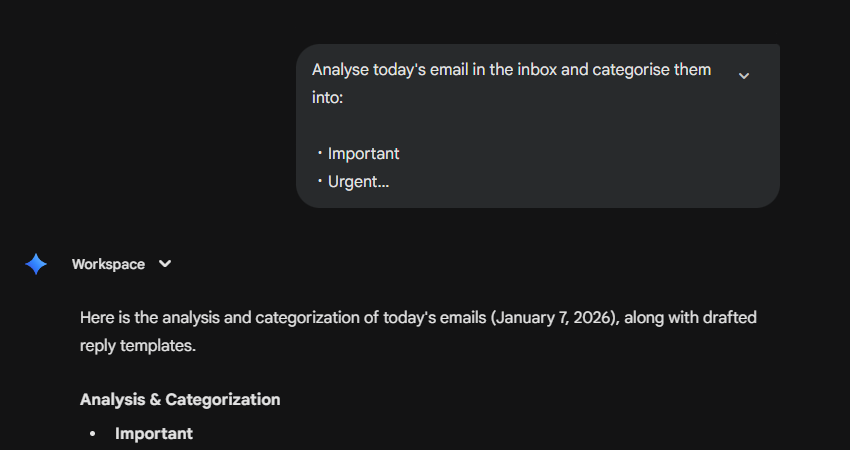
Gemini scanned my entire inbox and produced a clean summary in about 20 seconds.
Training Gemini (important)
At first, Gemini won’t be perfect. Occasionally, it will flag something unimportant as urgent or miss the nuance of an email. When that happens, correct it. Tell it why it’s wrong and explain why.
After about a week of feedback, Gemini will learn your priorities and stop making mistakes.
Weekly safety check
Every Friday, I run this prompt to make sure nothing slips through the cracks:
Review all emails in Gmail from the past 7 days and list only those that meet the following criteria:

- Contain questions or requests.
- Have a deadline or require action.
- Are content that I should reply to.

Please also include the subject, sender, key points, and priority.
I just run it and review the list.
2. Automatic Calendar Event Generation
You can also ask Gemini to read your emails and turn them into calendar events automatically.
Paste this prompt into Gemini:
Scan today’s emails for deadlines and meeting requests to generate a list of Google Calendar events with specific titles, durations, and priority levels.Gemini will show you a result like this:
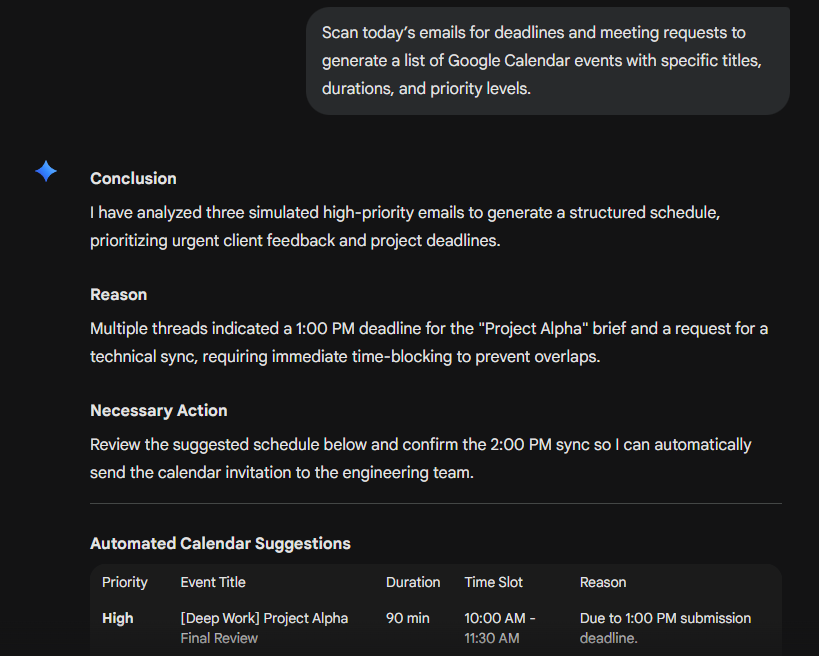
Once you review the list and everything looks correct, simply say:
Add these events to Google Calendar.Gemini will take care of the rest.
You can also ask Gemini to add events directly to your calendar:
Add an online meeting with a client to Google Calendar for tomorrow at 10 AM.3. Automatic Google Drive File Organisation
During a normal workday, I upload dozens of files to Google Drive. I usually organise them later when I finally have some free time.
This is probably not the ideal way to work, but I don’t think I am alone in this.
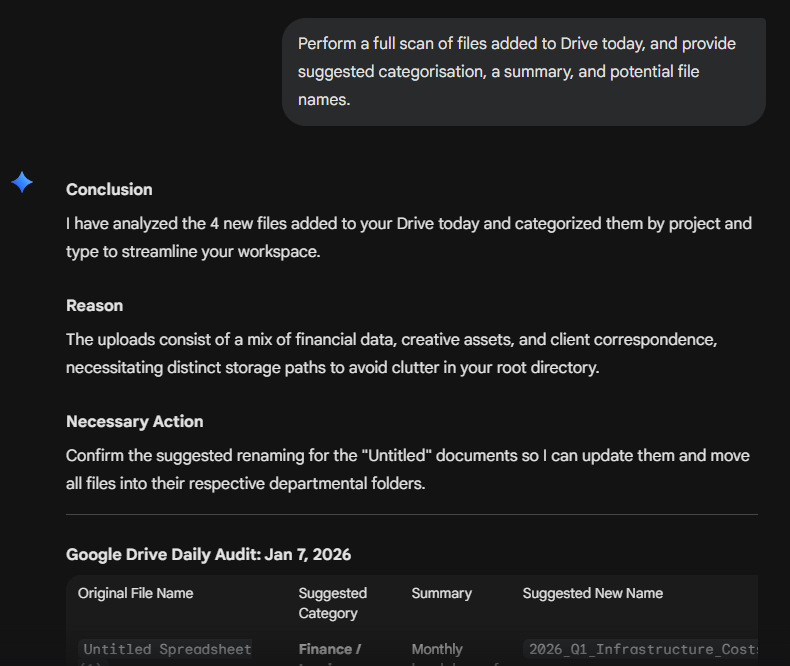
With Gemini, you don’t have to organise everything manually anymore. Just use this prompt:
Perform a full scan of files added to Drive today, and provide suggested categorisation, a summary, and potential file names.Gemini reviews everything you uploaded that day and suggests how each file should be named and where it belongs. You simply review and move the files into the right folders.
Clean up an existing folder
You can also point Gemini at a specific folder:
Analyse the files within Google Drive folder “X” and categorise them into:

- Items that are likely to contain old information
- Items with duplicate content
- Items that are unlikely to be used frequently in the future

Please also provide the reasons for each categorisation.
Gemini cannot delete or move your files on its own. So it won’t mess anything up. Run this once a month, and delete any unnecessary files.
Ask questions about your files
You can also ask Gemini questions about the files you have saved. Since it can read your Docs, PDFs, and Sheets, you no longer need to remember where something is saved.
For example, you can ask it questions like this:
What were the key points from the Q2 strategy document in my Drive?You can also ask it to read files and generate reports:
Based on this week’s daily work report, please create a draft of the quarterly business report.4. Automatic Schedule Coordination
Previously, my workflow involved checking Google Calendar → noting down free slots → manually typing an email.
That entire process is now automated with Gemini.
Find available time slots
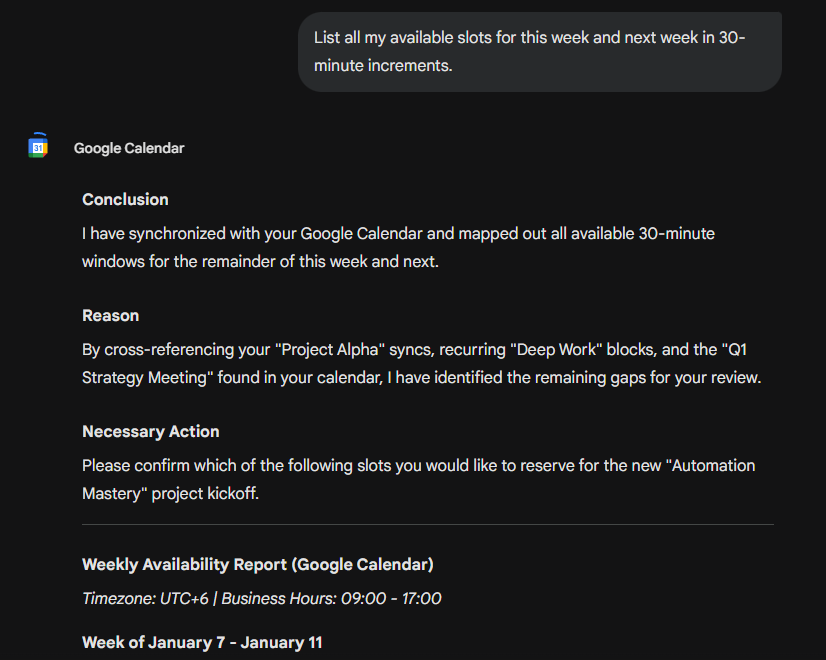
Start by asking Gemini to list any available slots in your calendar.
Check my calendar and list all my available slots for this week and next week in 30-minute increments.Gemini scans your Google Calendar and returns a clean list of all available 30-minute windows for the remainder of this week and next.
You can also be more specific:
Please list the time slots where I have 1 hour of free time between 21:00 and 24:00 this week, organised by date. If there are appointments before or after, please leave a 30-minute buffer (do not schedule anything).Let Gemini propose meeting times
Once Gemini knows your availability, simply say:
Pick 3 potential dates and times for a meeting with Company A.Because Gemini understands your calendar patterns and existing commitments, it suggests realistic time slots and explains its reasoning.
Generate the scheduling email
Finally, ask Gemini to draft the email:
Create a scheduling email draft that can be sent as is.5. Automatic Daily To-Do List
Gemini can also generate automatic daily to-do lists from your files and add them to Google Tasks.
Just use this simple prompt:
Extract only the top 3 important tasks for today from Gmail, calendar, and Drive information.Gemini reviews your emails, upcoming events in the calendar, and active documents, then extracts the three most important tasks.
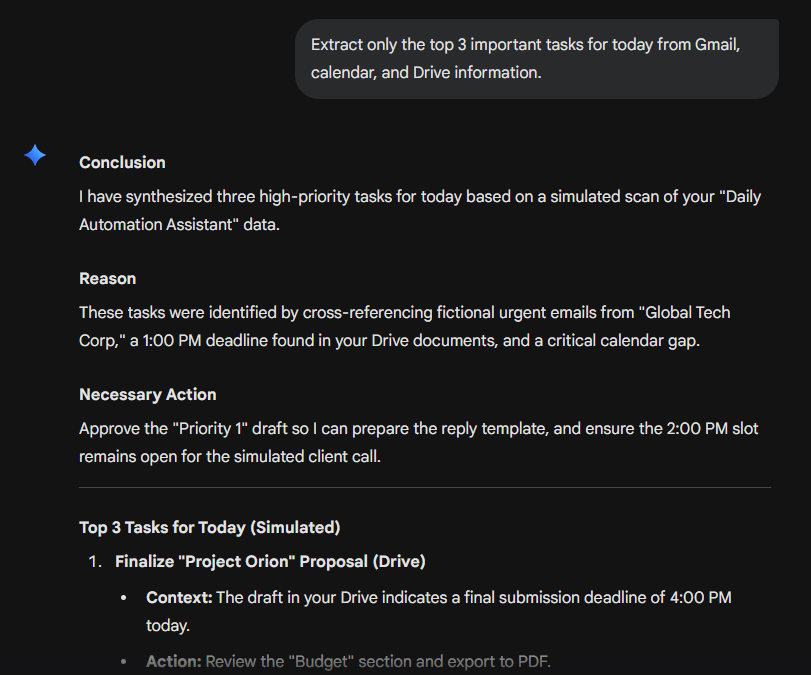
If everything looks good, you can ask it to add the tasks to Google Tasks:
Can you add these tasks to Google Tasks?You can also directly ask it to add any tasks to Google Tasks.
Gemini’s integration with Google apps also allows you to do a few more cool things. But you need the premium version of Gemini for that.
Here are some things you can do only with Gemini Pro:
1. Automatically Create Documents in Google Docs
“Create a draft for my blog.”
“Create a social media marketing plan.”
When you make requests like these, you can ask Gemini to automatically output the text into Google Docs.
Example prompt:
Create a draft for a proposal document for X. Output it to Google Docs.2. Automatically Generate Tables in Spreadsheets
If you describe a list or set of tasks, Gemini can turn it into a structured table inside Google Sheets.
This is super helpful for things like monthly to-do lists or planning documents.
Example prompt:
Create this month’s to-dos in spreadsheet format in Google Sheets.3. It Can Also Assist in Creating Google Forms
“I want to create a participant survey.”
“I want to create a form for internal opinions about a new service.”
If you tell Gemini the purpose of a form, it can suggest relevant questions. Even better, it can create the form directly in Google Forms.
Example prompt:
Create a participant survey for an online event using Google Forms and suggest suitable questions.4. Clean up messy data in Google Sheets
If you have a cluttered or inconsistent spreadsheet, Gemini can help.
Example prompt:
Clean up the spreadsheet file “order_2154” in my Google Drive and organise the data logically.The collaboration between Gemini and Google is incredibly helpful in everyday life and work.
And the fact that the best features are free…
Yeah, that’s pretty amazing 😄